Steps to Get You All Set Up

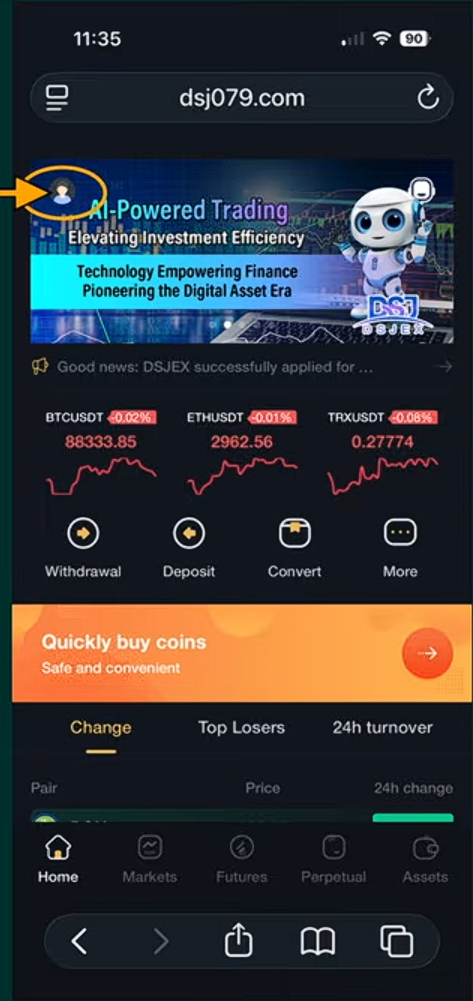
Step 1 — Log Into Your DSJ Account
Open the DSJ Exchange website and log into your account using your email and password, then tap Login.
Step 2 — Open Futures
Once you are logged into your account, look at the menu at the bottom of the screen and tap Futures.
Step 3 — Open Copying History
Inside the Futures section:
First tap Invited Me, then tap Copying History.
This is where you will see your trading history and profits.
Step 4 — Check Your Withdrawable Balance
On the Copying History page you will see two important numbers:
🟧 Orange Box
This shows the total amount of trading orders.
🟩 Green Box
This shows the profit from following orders.
This is the amount you can withdraw without paying the 20% early withdrawal penalty.
Step 5 — Go To Assets
Once you confirm the amount you want to withdraw, scroll down and tap Assets.
Step 6 — Prepare Your Wallet
To receive your funds, you will need a crypto wallet.
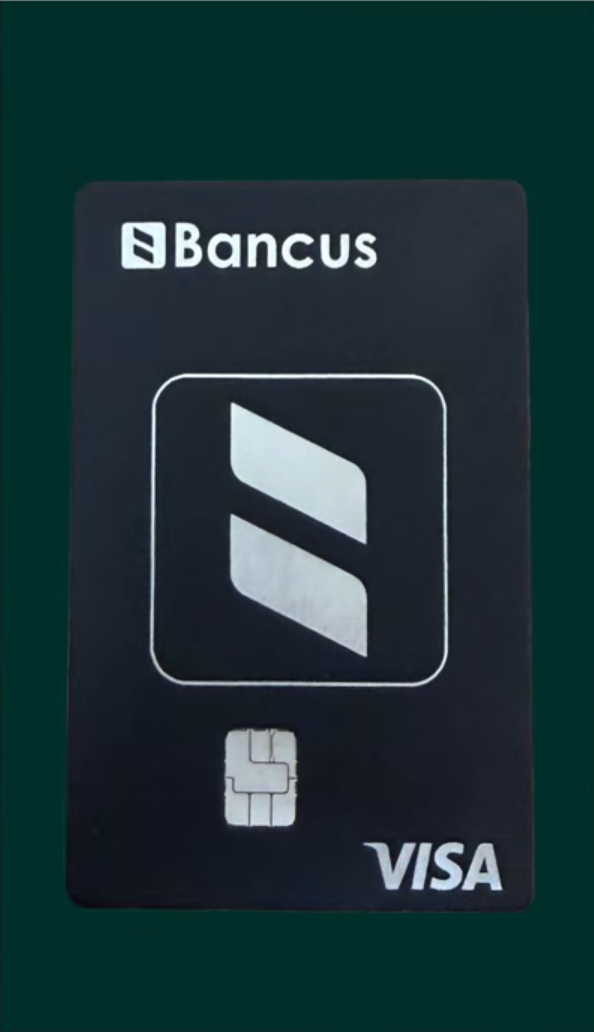
In this example we use Bankus, which is secure and allows you to use your funds like a debit card.
Step 7 — Open Your Bankus Wallet
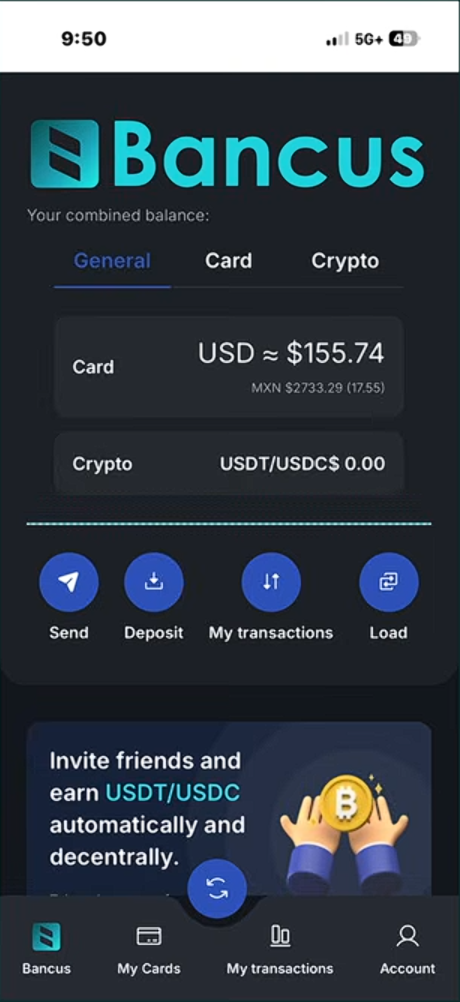
Open the Bankus app on your phone.
Your wallet dashboard will appear here.
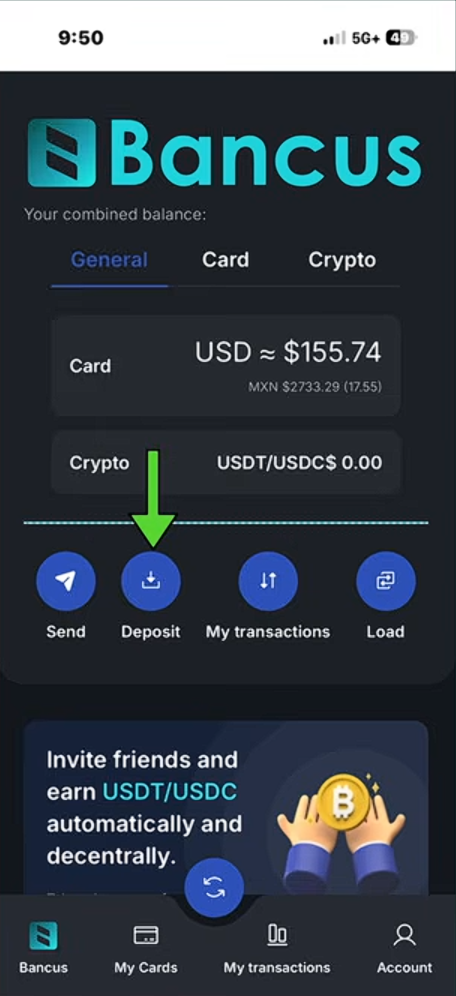
Step 8 — Tap Deposit
On the Bankus wallet screen, tap Deposit.
Step 9 — Select The Correct Network
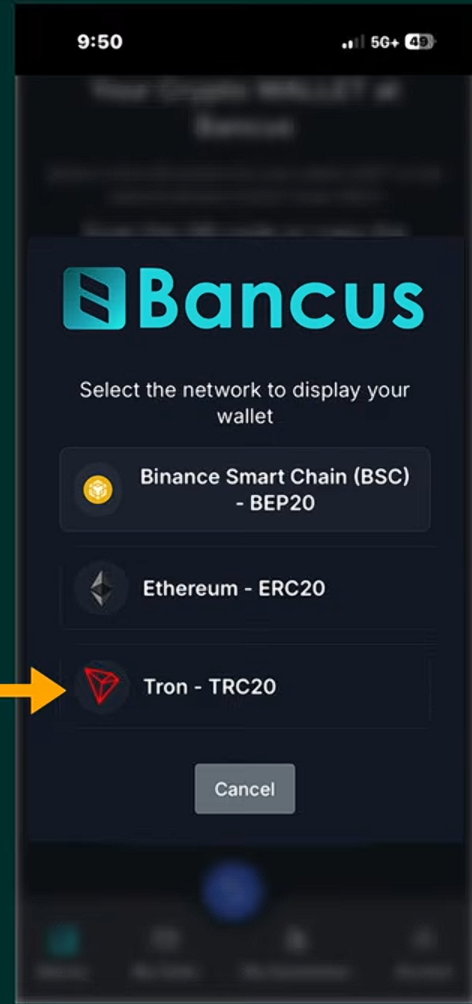
Select the USDT network and choose:
Tron (TRC20)
At the moment this is the only supported withdrawal network.
Step 10 — Confirm The Network Warning
You will now see a warning message.
It reminds you to send only USDT using the Tron (TRC20) network.
Tap Understood to continue.
Step 11 — Copy Your Wallet Address
You will now see your Bankus USDT wallet address.
You can either:
• Scan the QR code, or
• Tap the copy icon to copy the wallet address.
Copy the wallet address because you will need it for your DSJ withdrawal.
Step 12 — Copy The Address
Tap the copy icon next to the wallet address.
This will copy your USDT TRC20 wallet address to your clipboard.
Step 13 — Return To Your DSJ Account
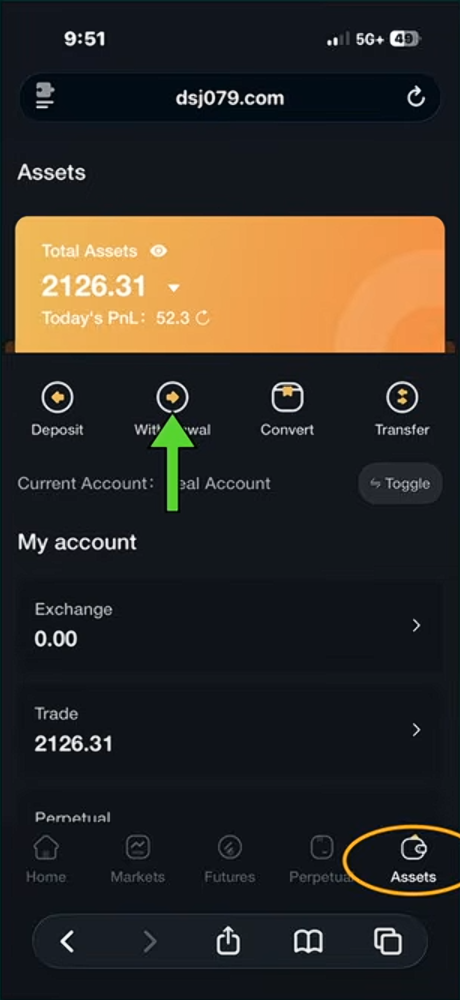
Go back to your DSJ Exchange account and open the Assets section.
Then tap Withdrawal.
Step 14 — Bind Your Wallet Address
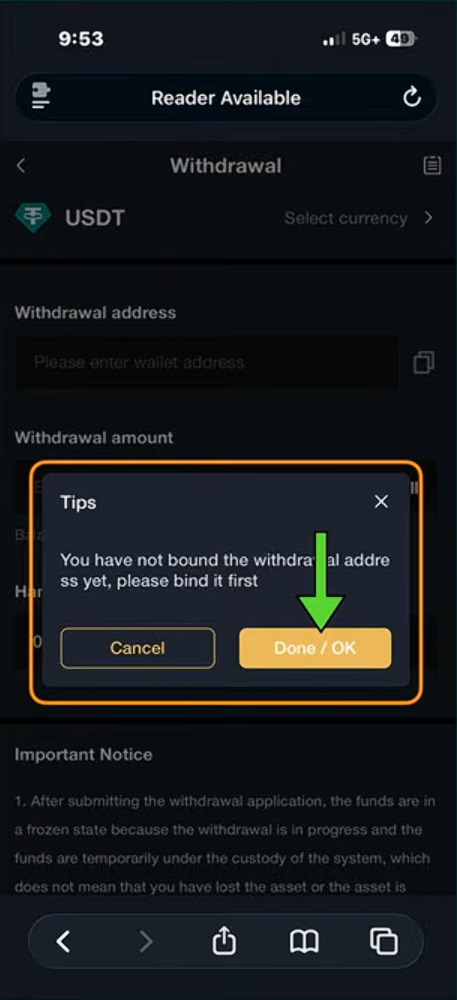
If this is your first withdrawal, DSJ will display a message saying:
You have not bound the withdrawal address yet.
Tap Done / OK to continue.
Step 15 — Select The Correct Network
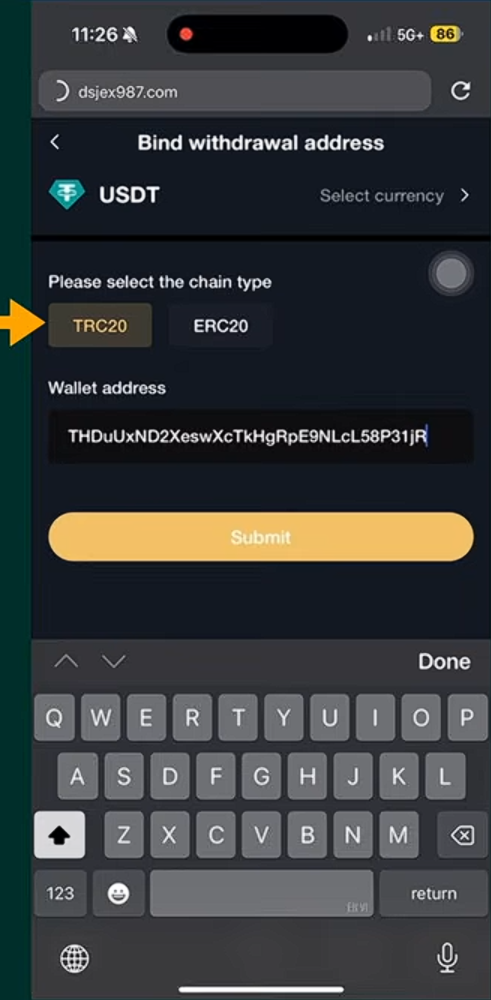
Select the correct chain type.
Choose:
TRC20
Then paste the wallet address you copied from Bankus.
Step 16 — Return To Assets
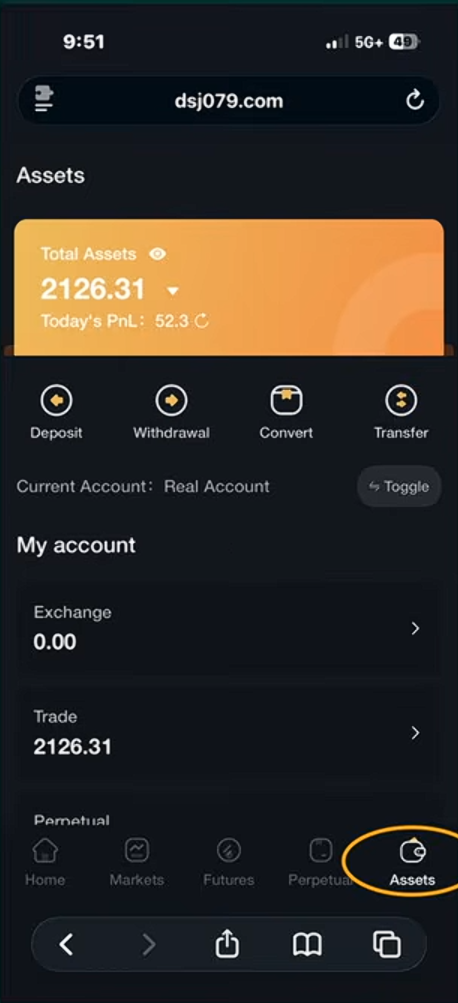
After binding the wallet address, you will return to the Assets page.
Step 17 — Open Transfer
Now tap Transferto move funds from your trading wallet.
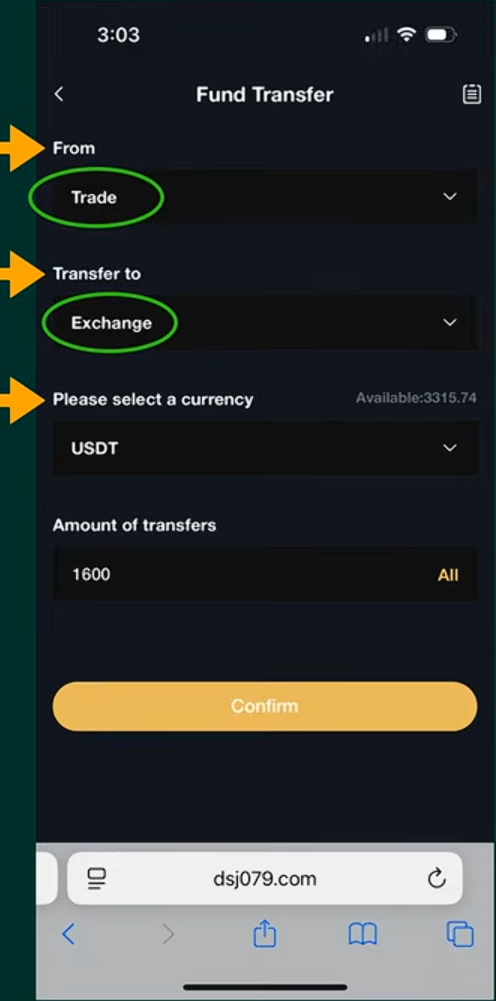
Step 18 — Select Transfer Source
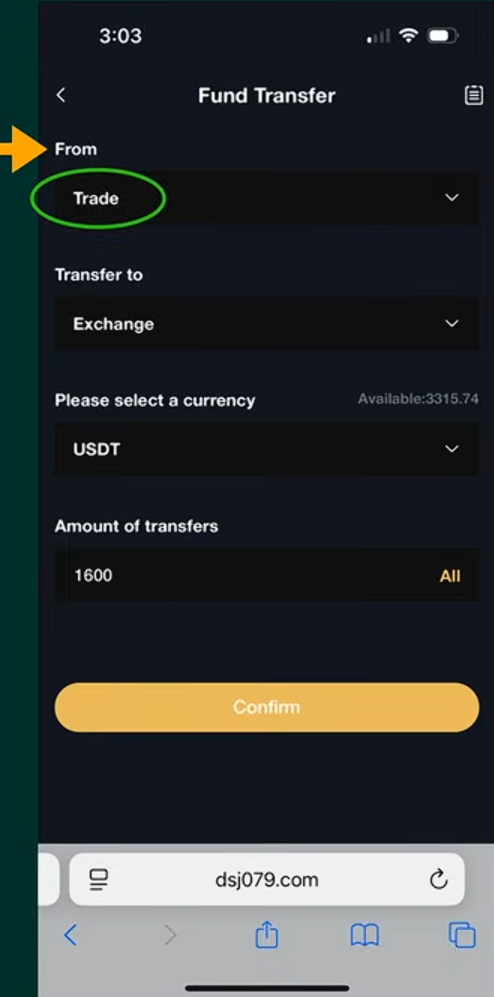
In the From field select:
Trade
This is where your trading profits are stored.
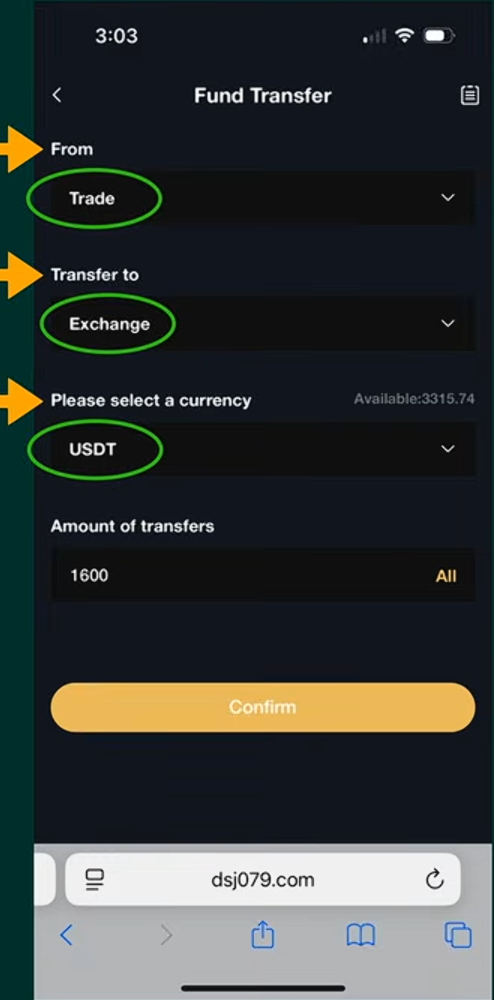
Step 19 — Select Transfer Destination
In the Transfer To field select:
Exchange
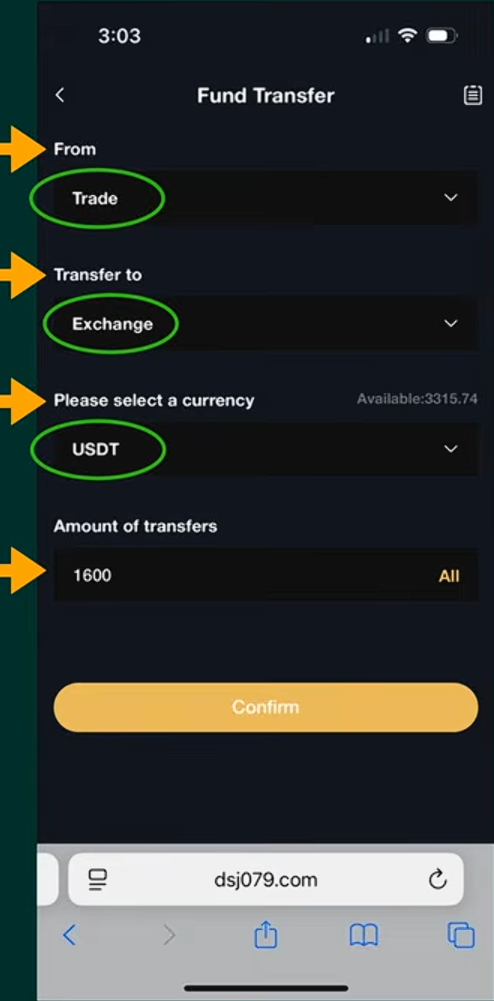
Step 20 — Select Currency
In the Please Select a Currency field choose:
USDT
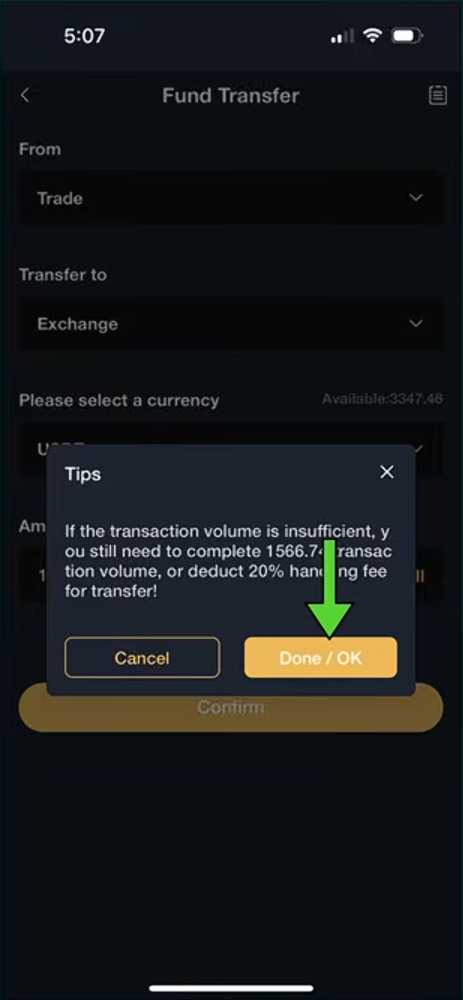
Step 21 — Early Withdrawal Warning
When transferring funds, you may see this message:
If the transaction volume requirement has not been met, a 20% handling fee may apply.
Simply tap Done / OK to continue.
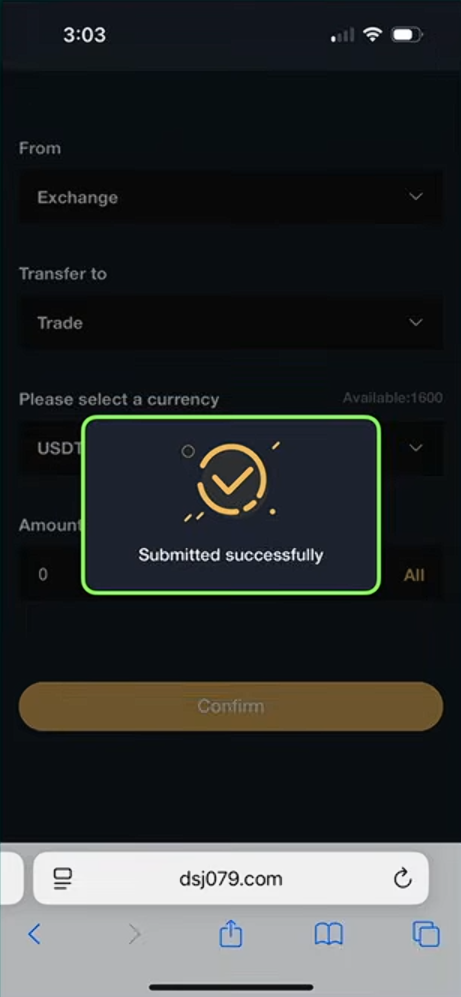
Step 22 — Transfer Submitted
You will now see a message confirming:
Submitted Successfully
This means your funds have been successfully transferred to the Exchange wallet.
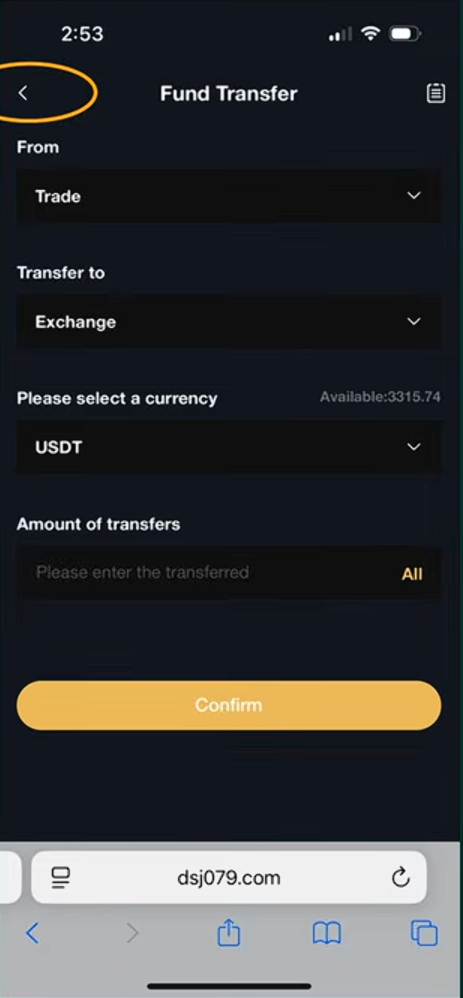
Step 23 — Return To The Previous Screen
Tap the back arrow in the top left corner.
This will take you back to the previous page.
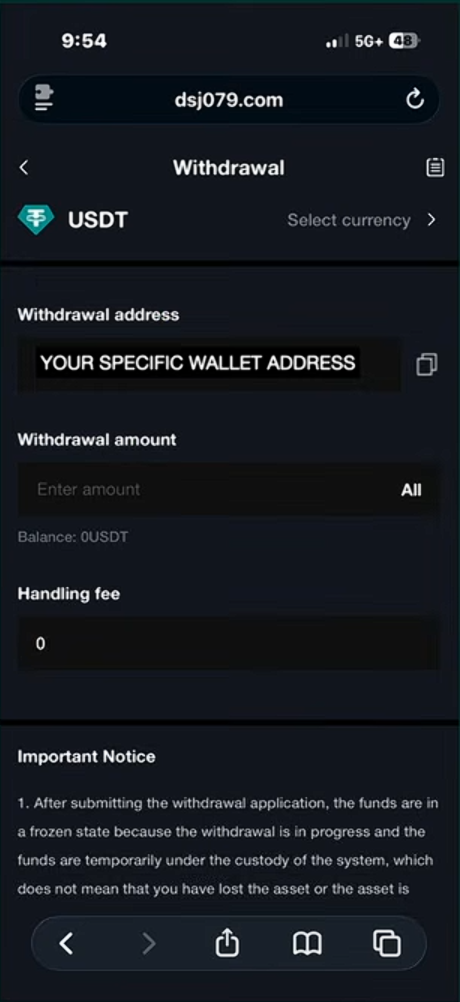
Step 24 — Begin Withdrawal
Now you will be on the Withdrawal page.
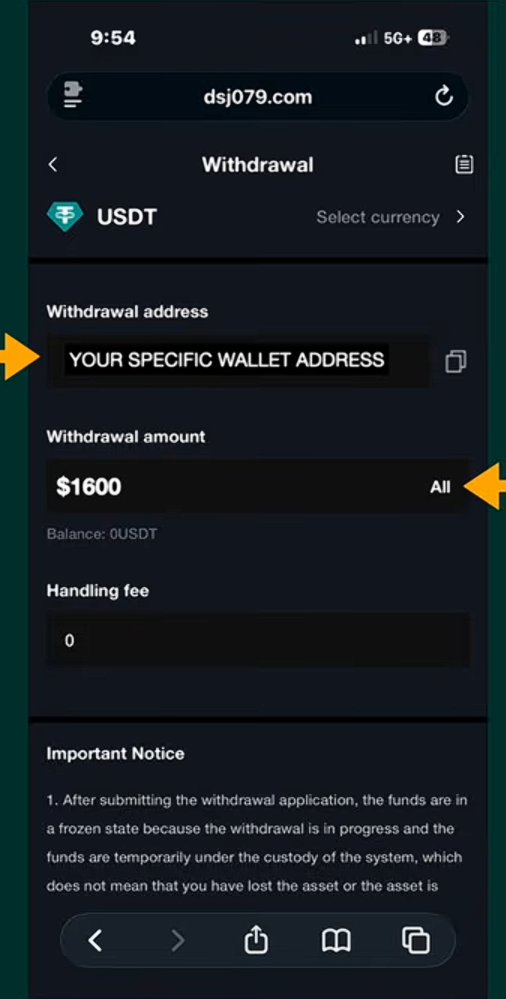
You will see your specific wallet address already filled in.
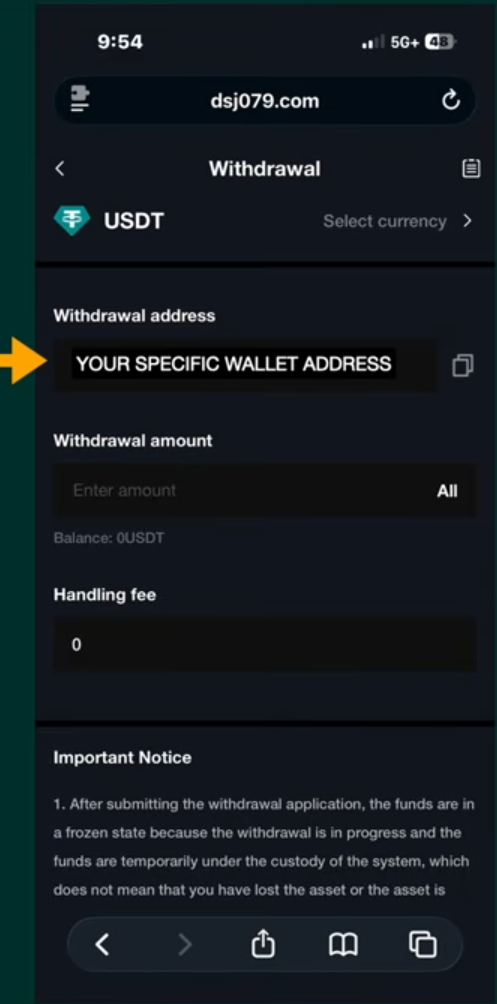
Step 25 — Confirm Your Wallet Address
Verify that your wallet address is correct.
This should be the same address you copied earlier from your Bankus wallet.
Step 26 — Enter Withdrawal Amount
Now enter the amount you want to withdraw.
In this example we are withdrawing:
$1600
Step 27 — Review Handling Fee
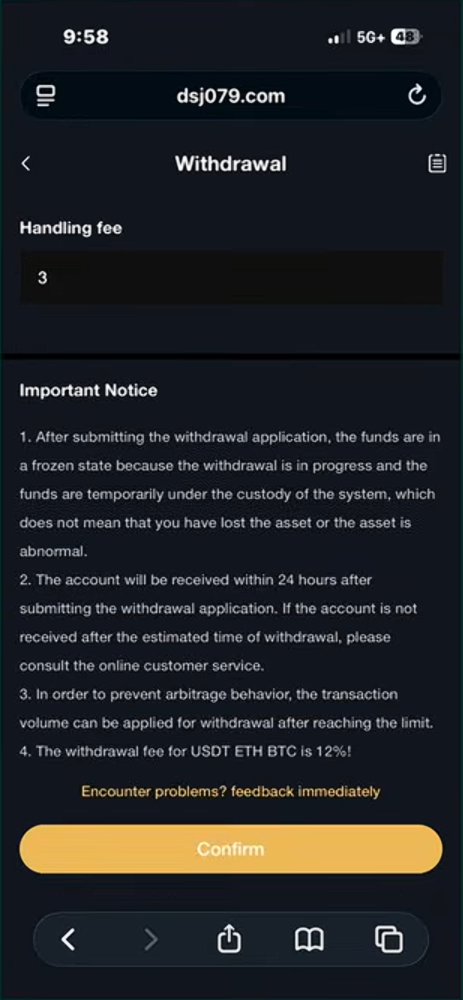
The system will automatically calculate the handling fee required for the withdrawal.
Step 28 — Confirm Withdrawal
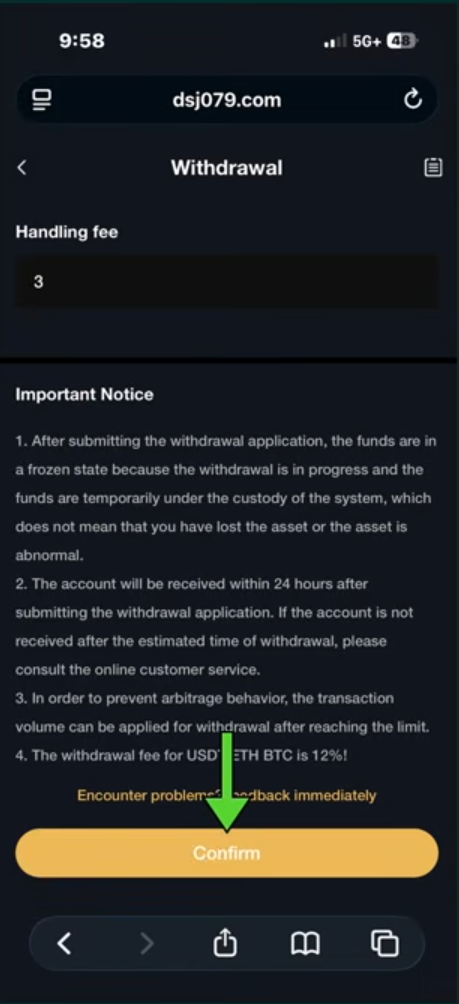
Scroll down and tap Confirm.
Your withdrawal request will now be submitted.
Final Step — Withdrawal Processing
After confirming:
• A small popup will appear confirming the withdrawal was successful.
• The transaction may process quickly, or
• It may take up to 24 hours depending on network traffic.
Once processed, the funds will appear in your Bankus wallet.